
If you are having trouble signing in to your google account follow these steps to get you signed in
First, have you ever been able to sign in to your Providence.org email account? if the answer is no, please mail help desk and we will get you set up.
If you can’t remember your Gmail password and think you’ve tried entering every possible combination under the sun, it might be time to reset it if you ever want to reaccess those precious emails.
To reset your forgotten Gmail password, you must have a registered backup email or mobile phone number in your account. Otherwise, Google cannot send a confirmation code to reset it.
Without one of the two requirements, Google prompts you to retry logging in, which brings you to a standstill. The only exception is if Google detects that you have logged in on that device before, it displays the new password option automatically, whether you entered an actual password or not. Here’s how to reset your unremembered password
- Navigate to “Google Account Recovery.”
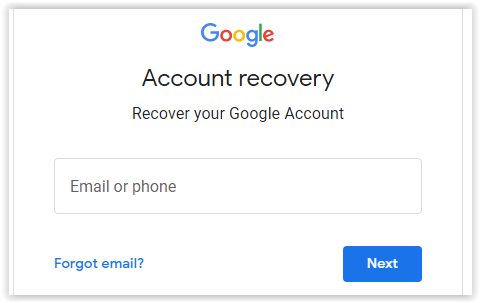
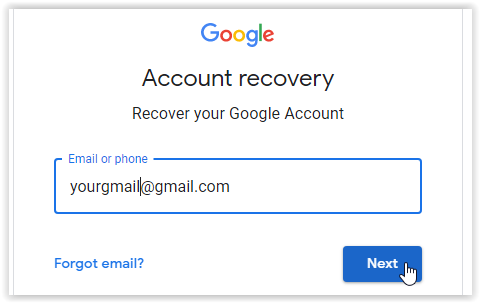
- Enter the email address that you’re trying to access and click “Next.”
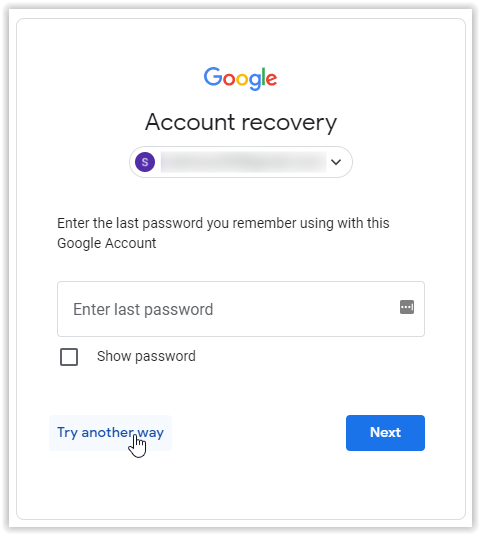
- In the prompt that appears, click on “Try another way.”
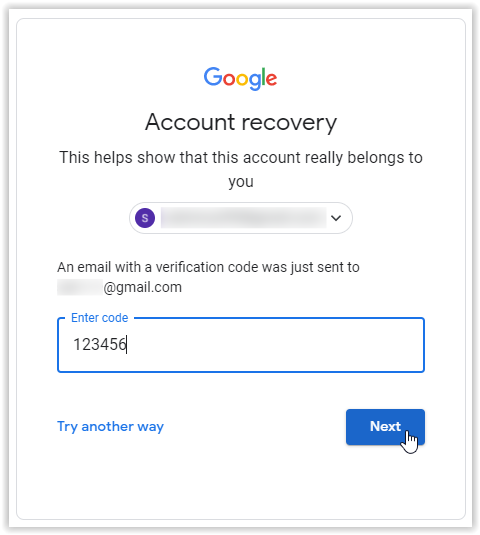
- Request a verification code to your linked mobile phone number or backup email. If you only have one of the two, it will automatically send the code to the registered option. Enter the code and click “Next.”
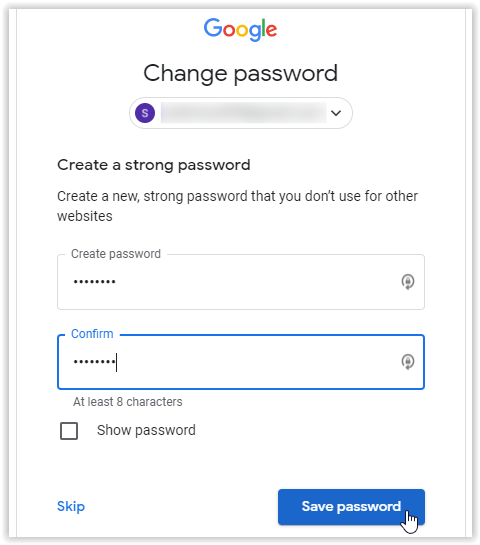
- In the “Change Password” screen, create your new password, confirm it, then click on “Save password.”
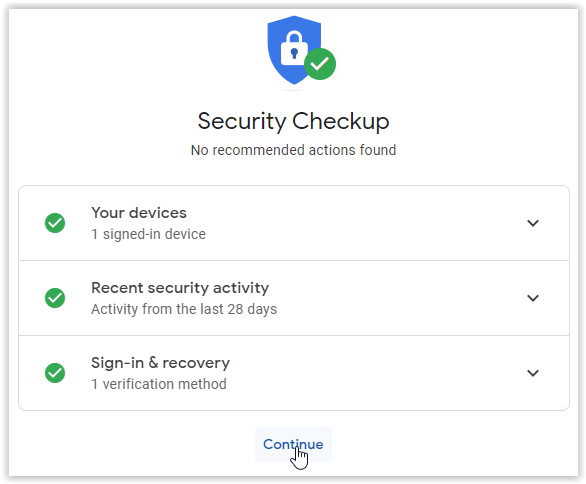
- After saving your new password, the Security Checkup screen appears. Click “Continue.”
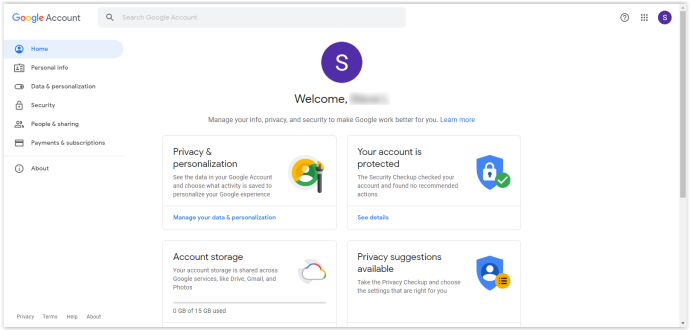
- You will now see your “Google Account” page, and your new password is now active.
As previously mentioned, the above steps require a registered backup email, phone number, or both. If you didn’t set either security option, you can’t change your forgotten password unless Google detects that you’ve signed in before on that device. For Google to detect previous login occurences, skip clicking on “Try another way,” as shown above in Step 3, and guess your current or older password instead.
How to Change Your Existing Gmail Password when You Know It
If you already know your current password and can access your account, resetting it is as easy as clicking a link.
- Sign in to myaccount.google.com.
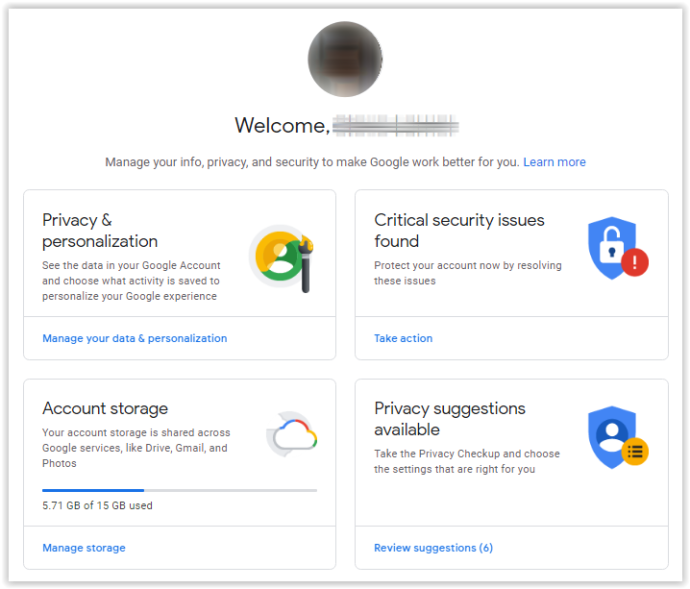
- Click on “Security” in the left menu, scroll down to the “Signing in to Google” section.
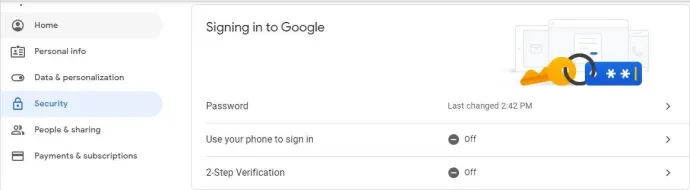
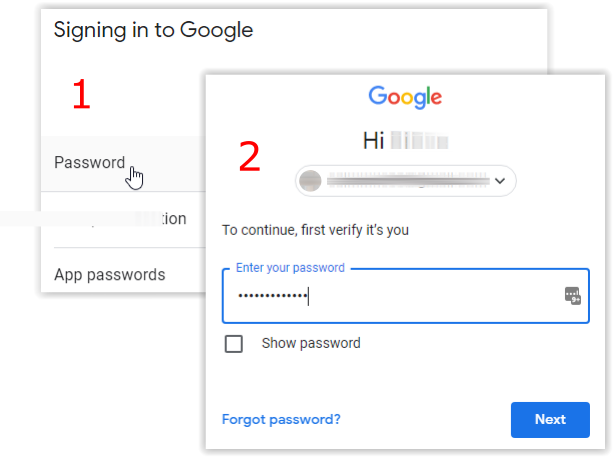
- Click “Password,” then enter your current password if prompted.
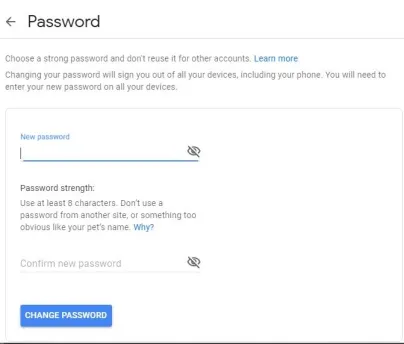
- Enter your new password and confirm it, then click on “CHANGE PASSWORD.”
How to Prevent Gmail Sign-In Issues
Suppose you can’t remember any of your security details, like your linked recovery email, or you no longer have access to your phone number. In that case, it’ll be incredibly tough to reset your password.
We recommend two things if the above scenario occurs.
First, ensure you set up two-factor authentication and that your email address gets linked to a phone number that you will always use.
Second, invest in a good free or paid password manager that will keep your passwords secure and continuously accessible. That way, you won’t lose your password again and can easily find it using the application.
Lastly, set up the backup codes function and store them somewhere safe. Google allows users to have ten backup codes at one time. This step is helpful when you get locked out. If you lose the codes at any point, getting new ones will wipe out the old ones for added security.
Tips when Using Google Account Recovery
Unfortunately, a hacked Gmail account can be challenging to access because the interloper may have changed your phone information or your backup email address, which affects the password reset processes above.
With all of Gmail’s security features, including Google 2-Factor Authentication (2FA), experience teaches that a Gmail account is not impenetrable.
The first thing to do (assuming you’ve already tried the password reset instructions above) is go back to the Account Recovery page as you did in the first process (How to Reset Your Gmail Password if You Forgot It). Then, utilize the following tips when trying again.
Other tips to help you get your account back using the Recovery Tool:
- Use a familiar device, whether it’s a smartphone, a browser on a computer, or even a tablet. If you’ve used your Gmail account on that device, go back to that device for recovery.
- When choosing to use your last password, Google will ask for the last one you used, but many people have found that older passwords work just fine too to get you through the password reset process.
- When using your recovery email account, use the same recovery email as you did before the account got hacked.
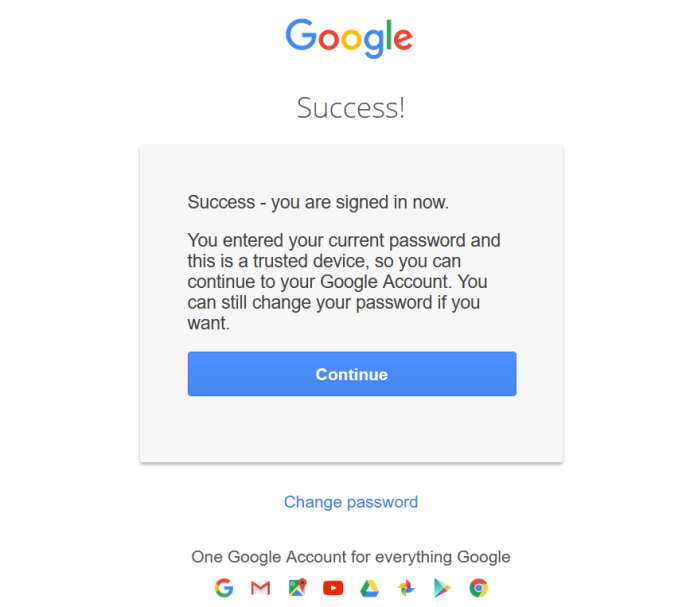 For personal google accounts please use google account help. Google account help
- Sign in to myaccount.google.com.